 Iqbal Abdullah
How to Set Up Free Email Forwarding for a Domain You Own
Free email forwarding sends mail for your domain to the inbox you already use. Learn how MX records work, what free plans limit, and how to avoid spam.
What Free Email Forwarding Does, and What It Does Not
I have a habit of buying a domain before a project has a single line of code. Every one of those domains then needs a contact address. The registrar wants one, the payment provider wants one, and sooner or later a customer wants one. I did not want a new mailbox for each project. I wanted hello@ on every domain to land in the Google Workspace inbox I already read each morning. That is the whole job of free email forwarding.
Free email forwarding receives mail addressed to your domain and passes it on to an inbox you already have. A message to [email protected] arrives at the forwarding service. The service sends it on to your Gmail or Outlook address, and that is the end of it. Nothing is stored along the way. There is no second inbox to log in to, no storage to fill up and no webmail to learn.
What it does not do matters just as much. A free email forwarding service is not a mailbox, so there is no archive to fall back on if you lose your destination inbox. And on most free plans, ours included, forwarding runs one way. Mail comes in. Sending out from the custom address is a separate feature, which I cover near the end.
How MX Forwarding Works
Free email forwarding rests on a single DNS record. Once you understand that record, the setup stops being mysterious, and you can tell at a glance whether it is working.
What an MX Record Tells the Internet
Every domain can publish MX (mail exchanger) records in DNS. An MX record answers one question: which server accepts mail for this domain? When someone writes to [email protected], their mail server looks up the MX records of yourdomain.com and connects to the server named there. The lookup is described in RFC 5321, section 5.1.
Each MX record carries a priority number. Lower numbers are tried first, and higher numbers act as backups when the first server does not answer. If you publish only one record, the number changes nothing.
This is why the technique is often called MX forwarding. You install nothing and your website is not touched. You change the MX record, and from that moment the internet delivers your domain's mail to the forwarding service. It is the one step that switches delivery, which is also why it deserves care.
What Happens to a Message on the Way to Your Inbox
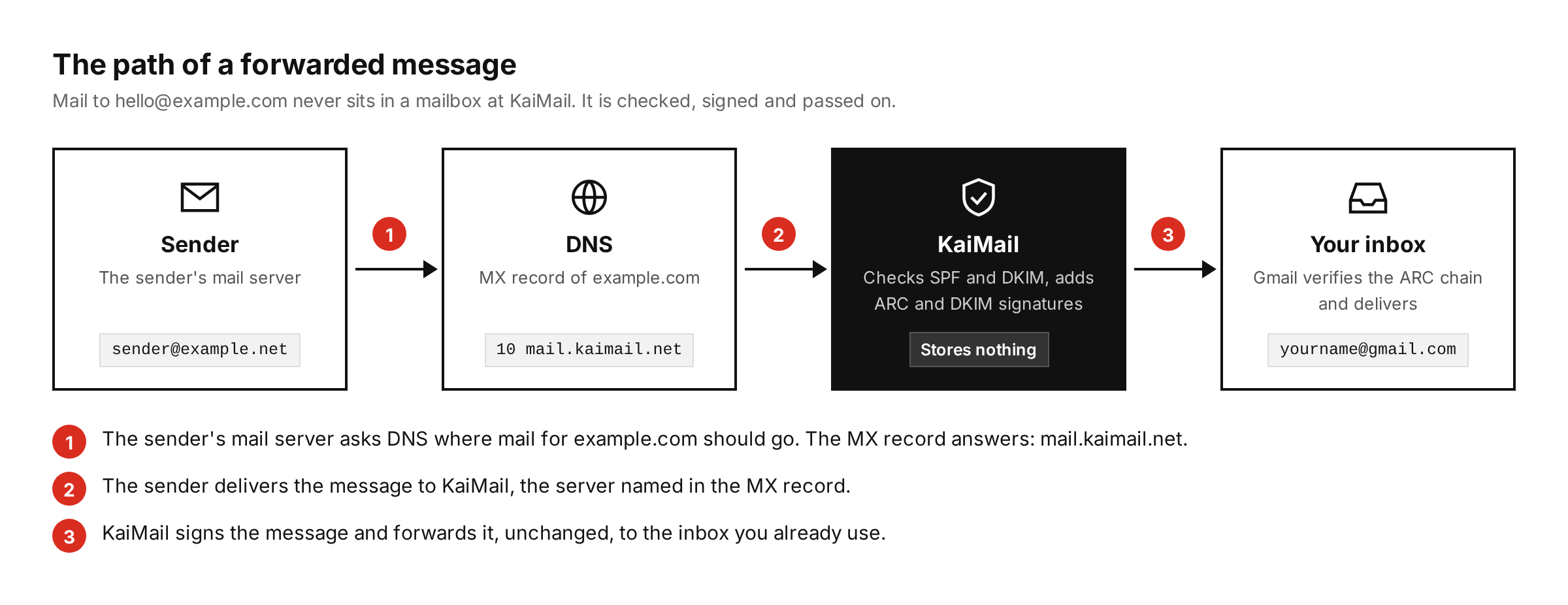
The diagram shows the three hops a forwarded message makes between the sender and the inbox you already use.
The sender's server asks DNS where your mail goes, receives the name of the forwarding server and delivers the message there. The forwarding service checks that the address exists. KaiMail has no catch-all, so mail to an address you never created is refused on the spot instead of quietly piling up. For an address that does exist, the service looks up its destination and sends the message on. The address on your domain is only an alias. The real inbox is the one you already have.
What Free Plans Usually Limit
Free plans are free because they are limited, and the limits are where services differ most. Here are ours, in full.
| Limit | KaiMail Basic (free) |
|---|---|
| Custom domains | 1 |
| Addresses (mailboxes) | 1 |
| Received emails | 300 a month |
| Maximum email size | 1 MB |
| Sending from your address | Not included (paid plans from ¥550 a month) |
| Log retention | 1 day |
| ARC and DKIM signing | Included |
One domain and one address is enough for a hello@ on a side project. It is not enough for a team. Three hundred emails a month works out at about ten a day, which suits a contact address and not much more.
The line to read twice is the size limit. One megabyte is plenty for ordinary text mail, but a message with a photo, a signed PDF or a slide deck attached is usually larger, and KaiMail refuses anything over the limit before it is accepted. The sender gets a bounce. In plain words, most attachments need a paid plan. You would find this out anyway, and I would rather you hear it from me than from a client whose invoice bounced.
Other free services draw their lines in different places. Some limit the number of aliases, some cap the daily volume, some restrict message size, and most hold back sending. Those numbers change often, so check each provider's current pricing page before you commit your MX records to one of them.
Compare email forwarding services side by side
Why Forwarded Email Often Lands in Spam
Setting up forwarding is the easy part. The trouble shows up weeks later, when a message you were waiting for turns out to be sitting in the spam folder. This is rarely a mistake in your setup. It comes from the way forwarding collides with email authentication.
SPF Fails When a Message Is Forwarded
SPF, defined in RFC 7208, lets a domain owner publish the list of servers that may send mail for the domain. The receiving server compares the address of the server that connected to it against that list.
Forwarding breaks this check. When your bank writes to your custom address and the message is forwarded, Gmail sees it arriving from the forwarding server, which is not in your bank's SPF record. If the bank's record ends in -all, the strict setting, that is a hard fail.
Some forwarders, KaiMail among them, rewrite the envelope sender to their own domain so that bounces return to them. SPF can then pass, but it passes for the forwarder's domain and not for the bank's. DMARC only counts an SPF result whose domain matches the From address, so that pass does not help. Either way, after forwarding, SPF no longer vouches for the original sender.
How DKIM and ARC Keep Forwarded Mail Trusted
DKIM, defined in RFC 6376, works differently. The sender signs the body and a chosen set of headers, and the signature travels inside the message. It is not tied to any server address, so it survives forwarding as long as the forwarder does not change the signed parts. KaiMail adds its own header lines on top and leaves the rest of the message exactly as it arrived.
DKIM alone is not enough, because not every sender signs. ARC, the Authenticated Received Chain defined in RFC 8617, fills the gap. The forwarding server checks SPF and DKIM at the moment the message arrives, while SPF can still pass. It writes those results into the message and seals them with its own signature. When Gmail or Outlook later sees SPF fail, it can read the sealed record and learn that the message was properly authenticated before it was forwarded. Google asks for exactly this in its email sender guidelines, which tell services that forward mail to add ARC headers.
ARC is not a free pass. The receiver still decides whether it trusts the forwarder that made the seal. But without it, the receiver has nothing to go on at all.
KaiMail adds ARC and DKIM signatures to every forwarded message on every plan, including the free one. It is not a paid extra. This is the main reason I would choose it, because a forwarding service that delivers into the spam folder is not doing its job.
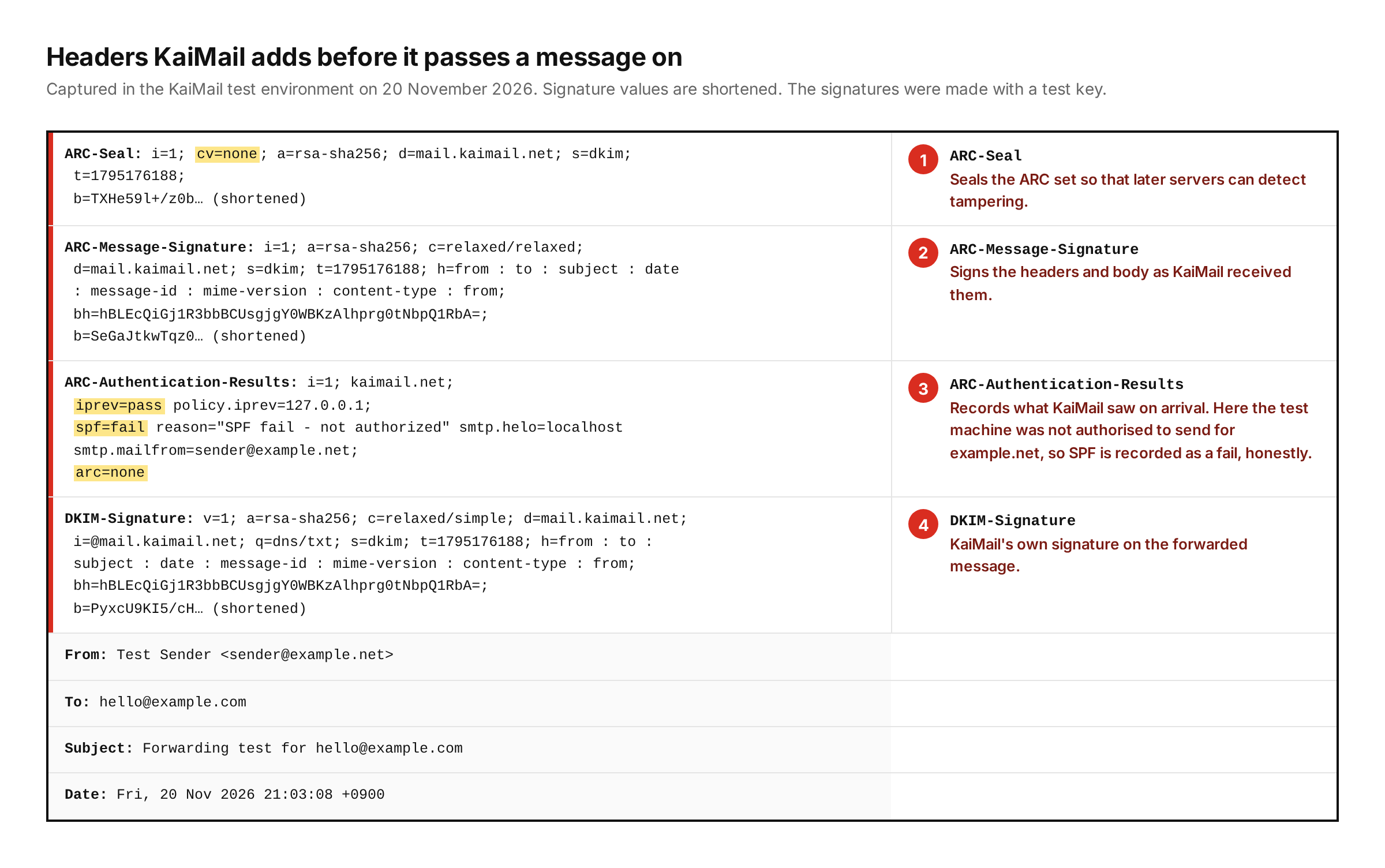
These are the four header blocks KaiMail added to a message we passed through our test environment on 20 November 2026, with the long signature values shortened.
Learn why forwarded emails go to spam and how ARC fixes it
Read how the ARC protocol works, header by header
How to Set Up Domain Email Forwarding With KaiMail
You need three things: a domain you own, access to its DNS settings, and a free KaiMail account. The dashboard part is two short forms. The DNS part is one record.
Step 1: Add Your Domain
Log in to KaiMail and open Routes. Click Add Domain, type your domain name without www or https://, and submit the form. The domain is saved and marked active straight away, with a reminder that no mail will arrive until the MX record points to KaiMail.
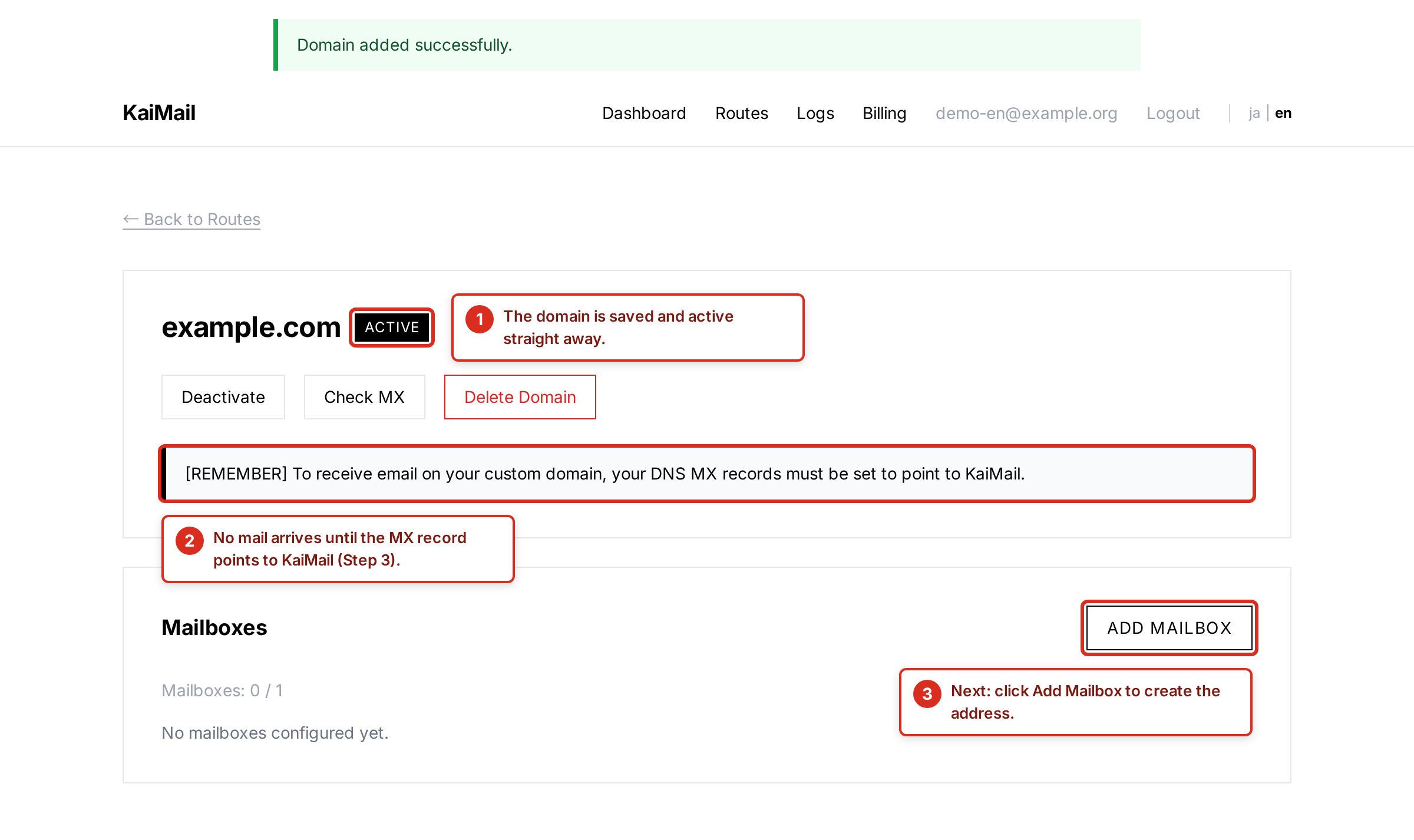
The domain page appears as soon as the domain is added, and the numbered notes mark what to look at next.
Step 2: Create the Address and Choose Its Destination
On the domain page, click Add Mailbox. Type the part of the address that goes before the @ sign, such as hello. Leave the route type on "Email Forward". Then enter the inbox you already use as the forwarding email, and save.
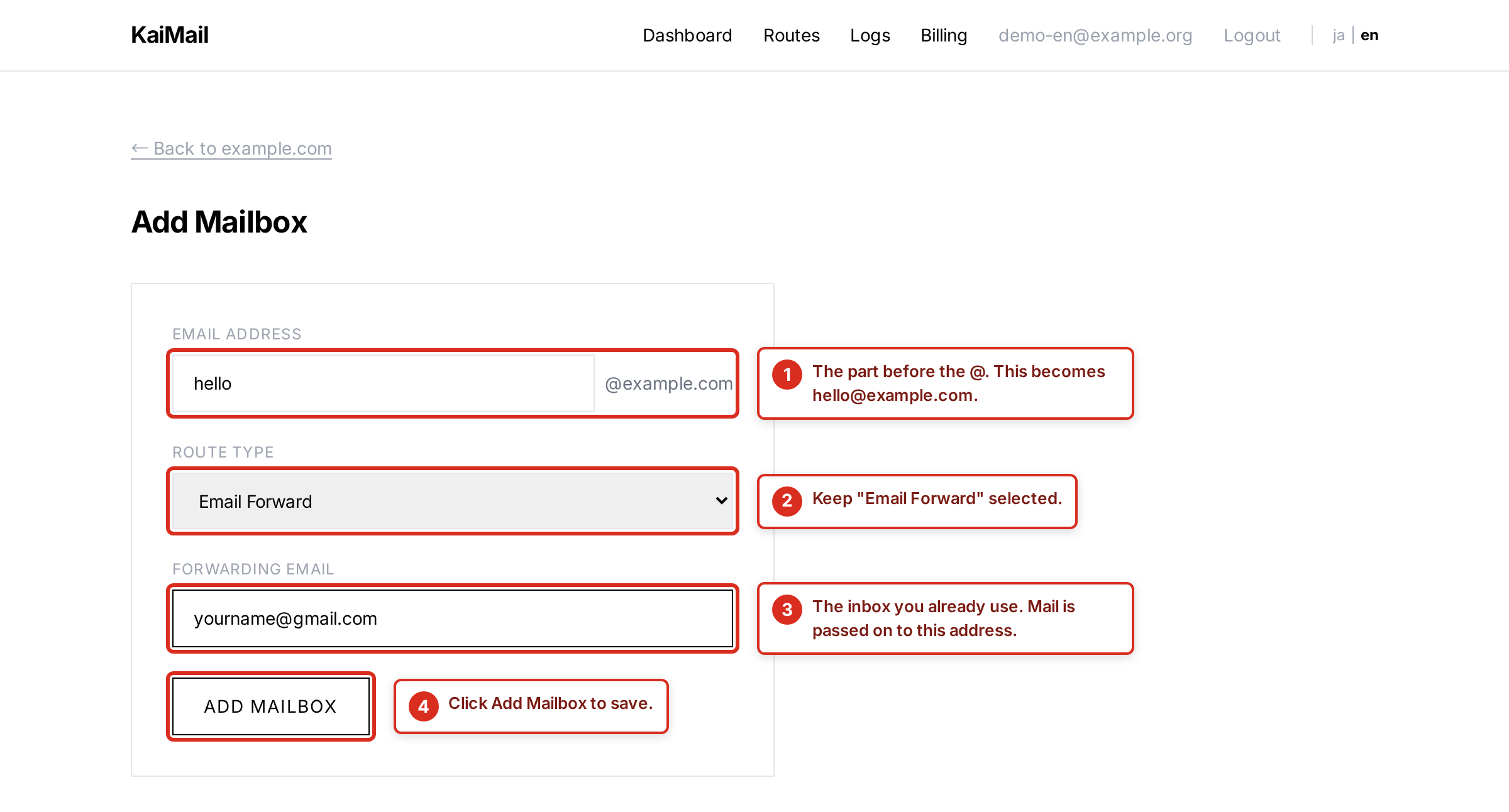
The form asks for only three things: the address, the route type and the inbox that should receive the mail.
The new address now appears on the domain page with its destination under it. On the free plan the mailbox counter reads 1 / 1, because one address is what the plan includes.
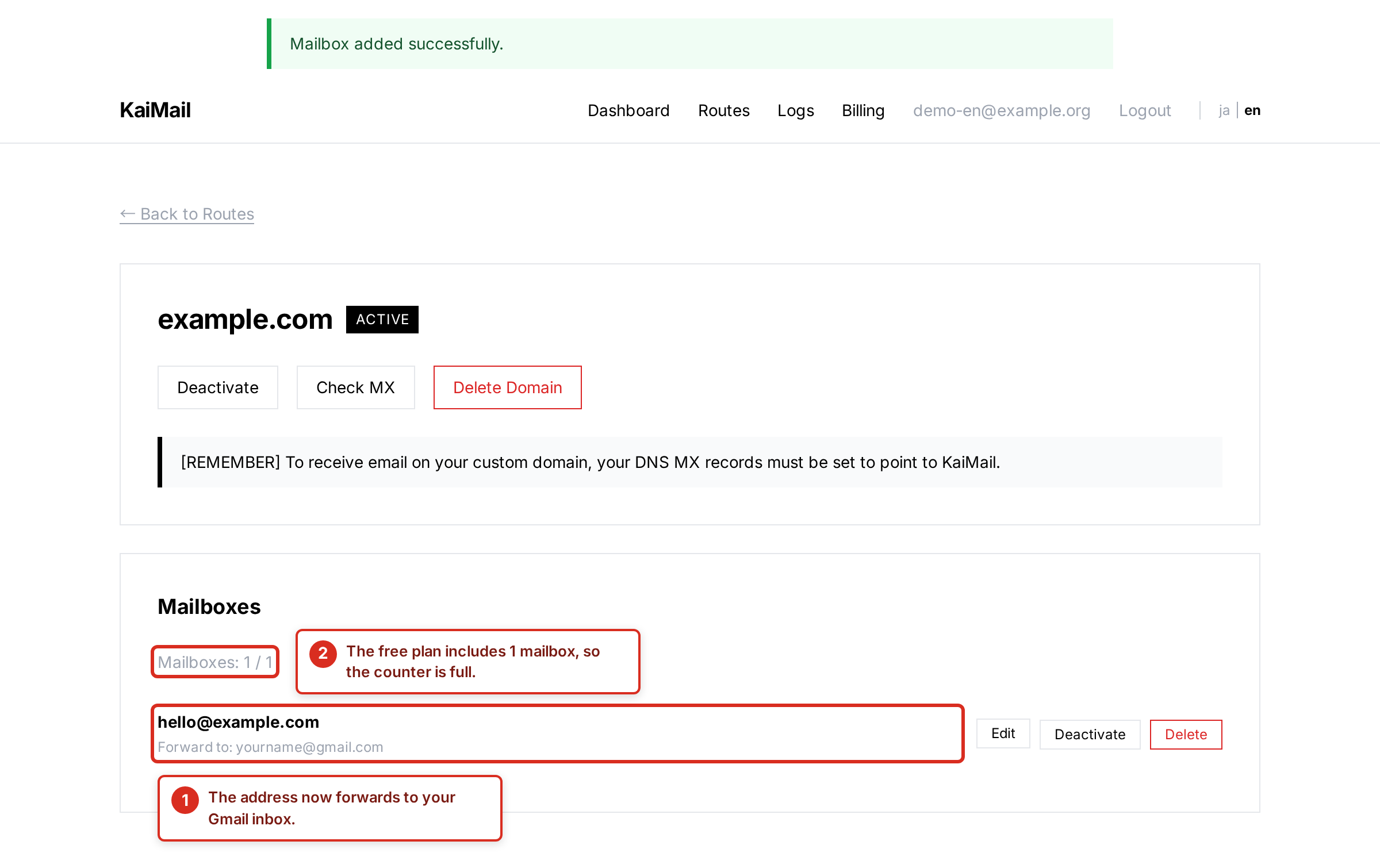
Once saved, the address and its destination are listed on the domain page.
Step 3: Point Your MX Records to KaiMail
Open the DNS settings wherever your domain's DNS is managed, which is usually your registrar or a provider such as Cloudflare or Route 53. Delete the MX records that are already there, then add this one.
| Field | Value |
|---|---|
| Type | MX |
| Name or host | @ |
| Mail server or value | mail.kaimail.net |
| Priority | 10 |
| TTL | 3600, or the provider's default |
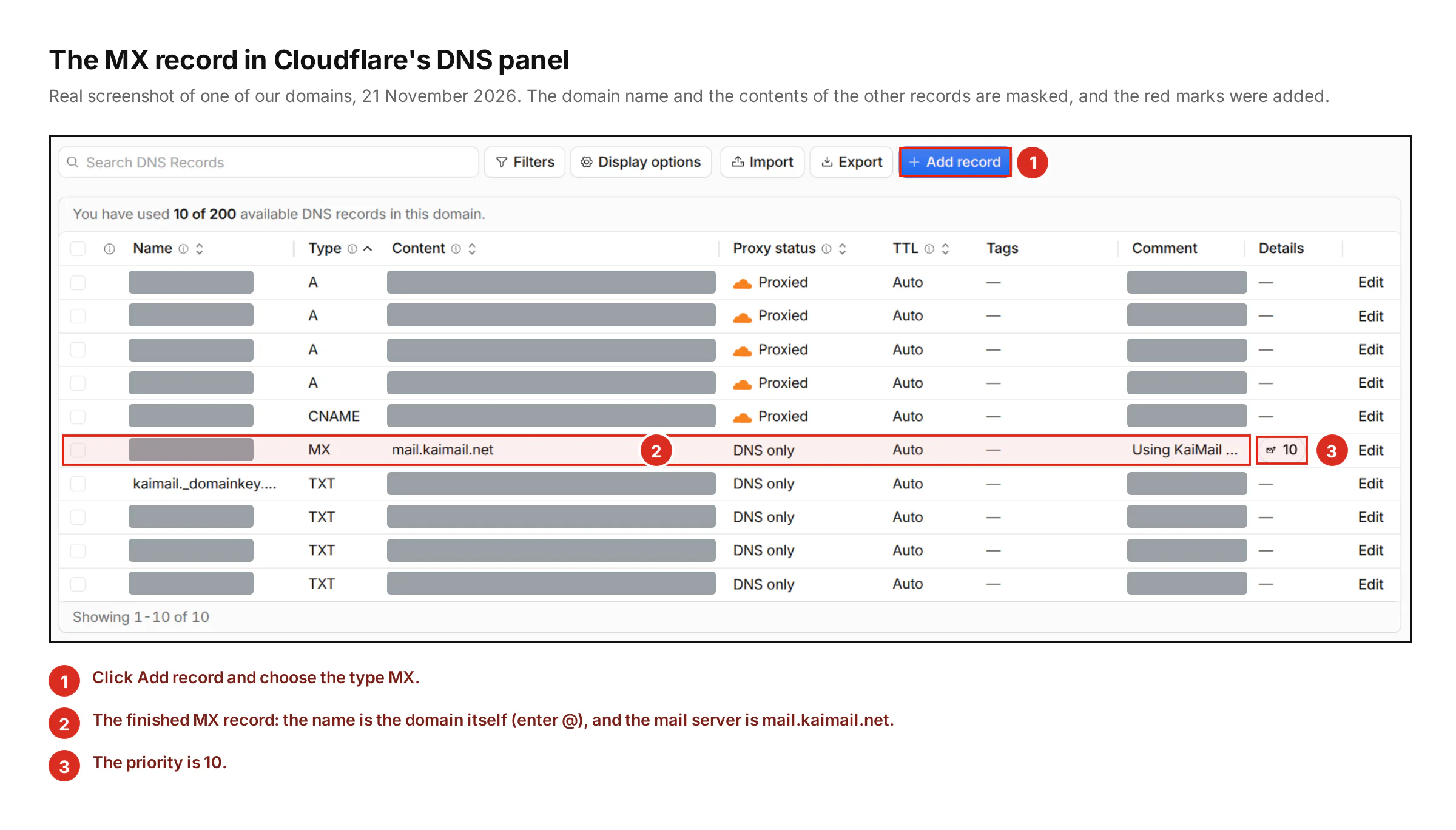
This is the finished MX record for one of our own domains in Cloudflare's DNS panel on 21 November 2026, with the domain name and the other records masked.
Back in KaiMail, click Check MX on the domain page. Before the change it reports that no MX records were found. After the change has spread, it confirms that the records are correctly configured. The screenshot below shows the check on one of our own domains, which already runs on KaiMail.
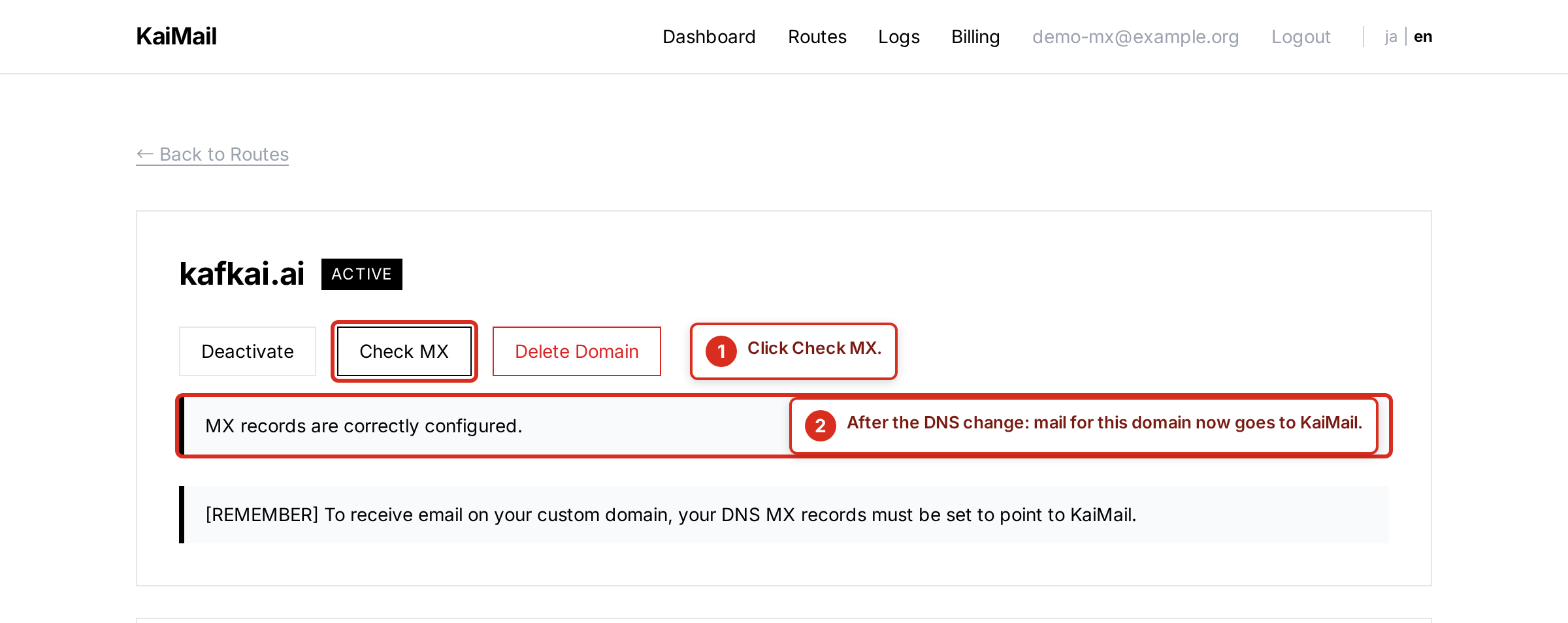
The Check MX button does a live DNS lookup and tells you whether mail for the domain now reaches KaiMail.
If you prefer a terminal, dig MX yourdomain.com +short should answer 10 mail.kaimail.net. and nothing else.
Step 4: Send a Test Message and Check the Headers
Send a message to your new address from a different account, not from the destination inbox itself, because Gmail hides copies of messages you sent to yourself. When it arrives, open it in Gmail, click the three dots and choose "Show original".
I ran this test on 21 November 2026. I sent one message from a Yahoo! JAPAN Mail address to an address that KaiMail forwards into a Google Workspace inbox. It arrived 10 seconds later.
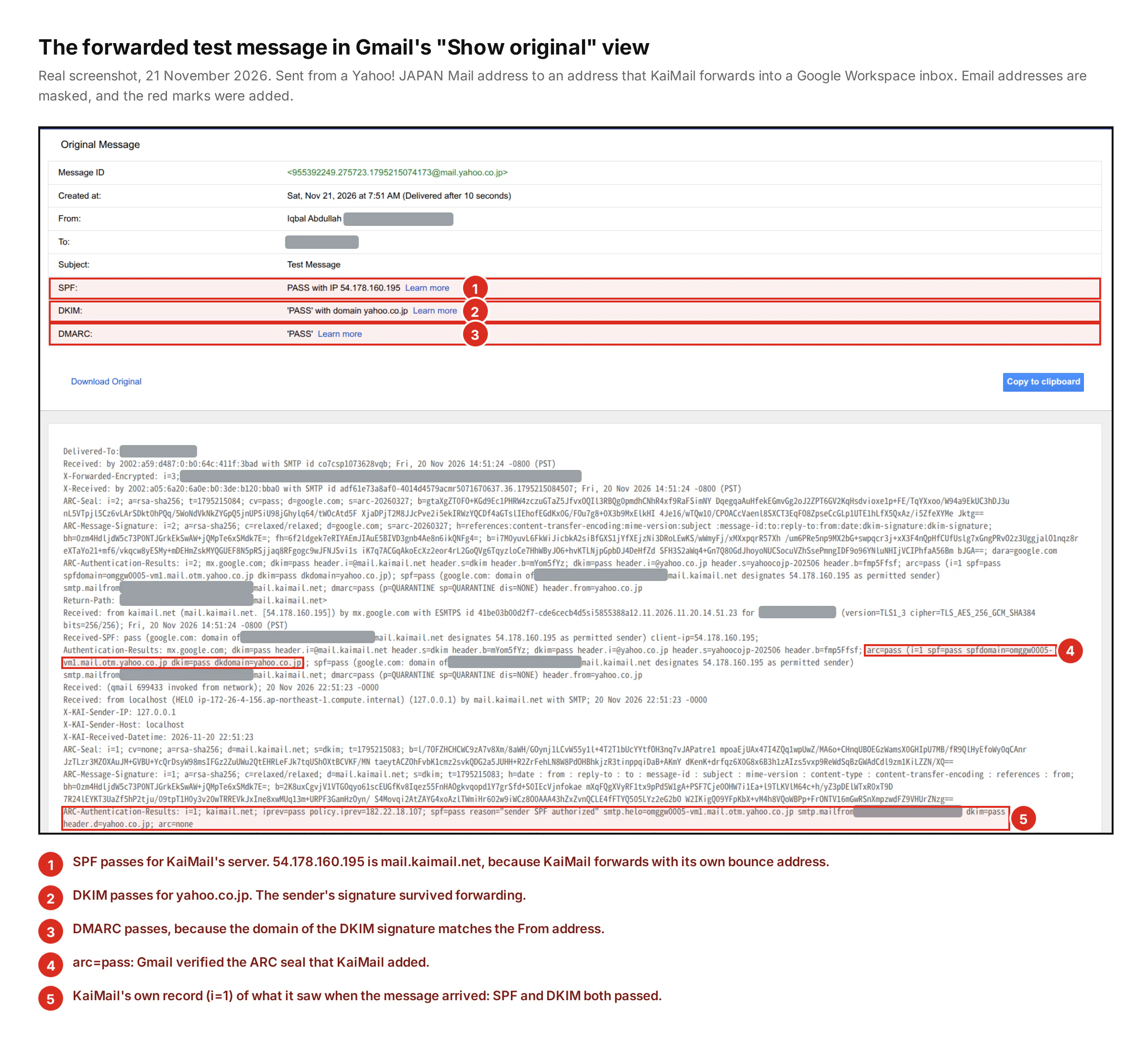
On 21 November 2026, Gmail showed SPF, DKIM and DMARC as PASS for the forwarded test message and recorded arc=pass in its headers.
The table at the top shows SPF, DKIM and DMARC only. The ARC result is in the raw text below it. These are the lines Gmail wrote, with the signature values and the bounce address shortened:
Authentication-Results: mx.google.com;
 dkim=pass [email protected] header.s=dkim;
 dkim=pass [email protected] header.s=yahoocojp-202506;
 arc=pass (i=1 spf=pass spfdomain=omggw0005-vm1.mail.otm.yahoo.co.jp
   dkim=pass dkdomain=yahoo.co.jp);
 spf=pass (google.com: domain of [email protected]
   designates 54.178.160.195 as permitted sender);
 dmarc=pass (p=QUARANTINE sp=QUARANTINE dis=NONE) header.from=yahoo.co.jp
SPF passed, but for mail.kaimail.net and not for Yahoo, because KaiMail forwards with its own bounce address. DMARC passed because Yahoo's DKIM signature arrived intact. And arc=pass means Gmail accepted KaiMail's sealed record that SPF and DKIM had both passed on arrival. One limit: this sender signs with DKIM. I did not test a sender that does not.
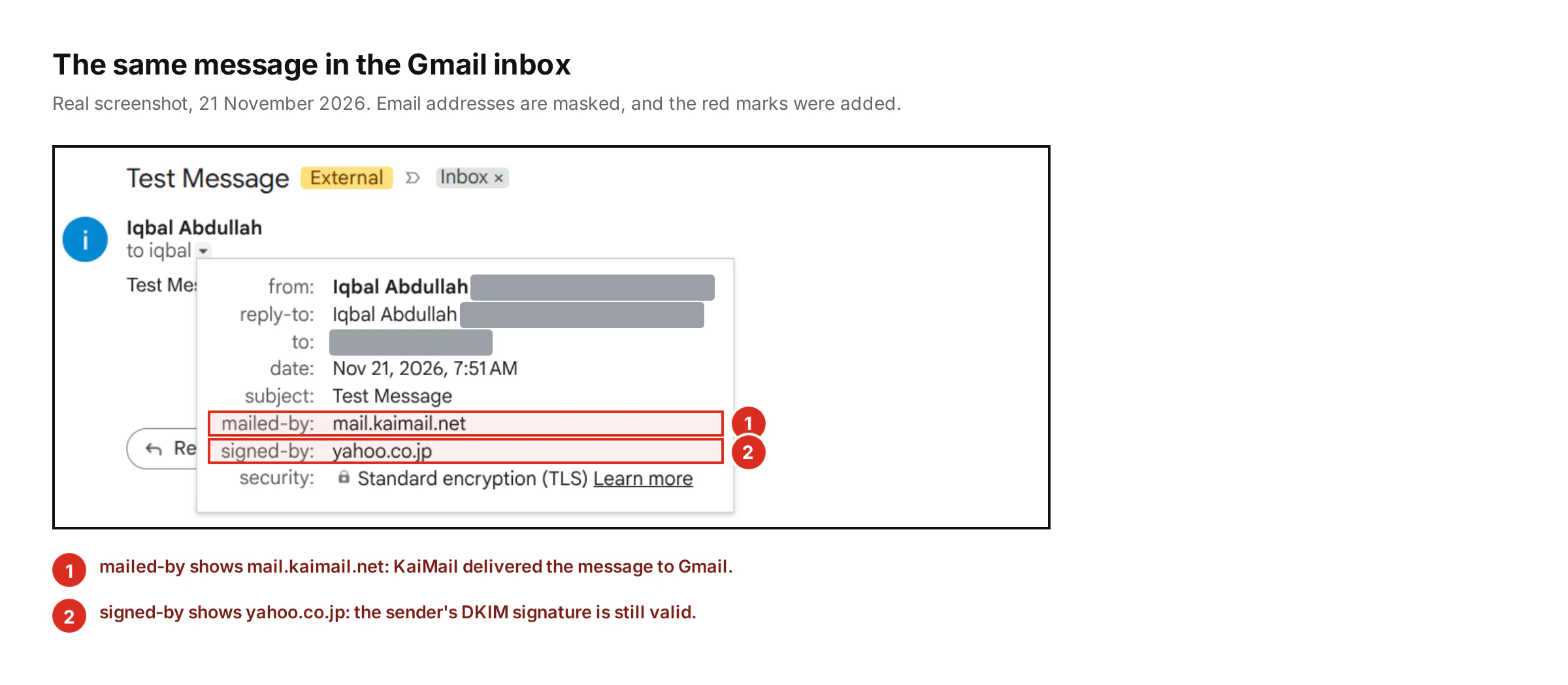
In the inbox, the details of the same message show mail.kaimail.net as mailed-by and yahoo.co.jp as signed-by.
Every forwarded message also shows up in the KaiMail log, where the free plan keeps it for one day.
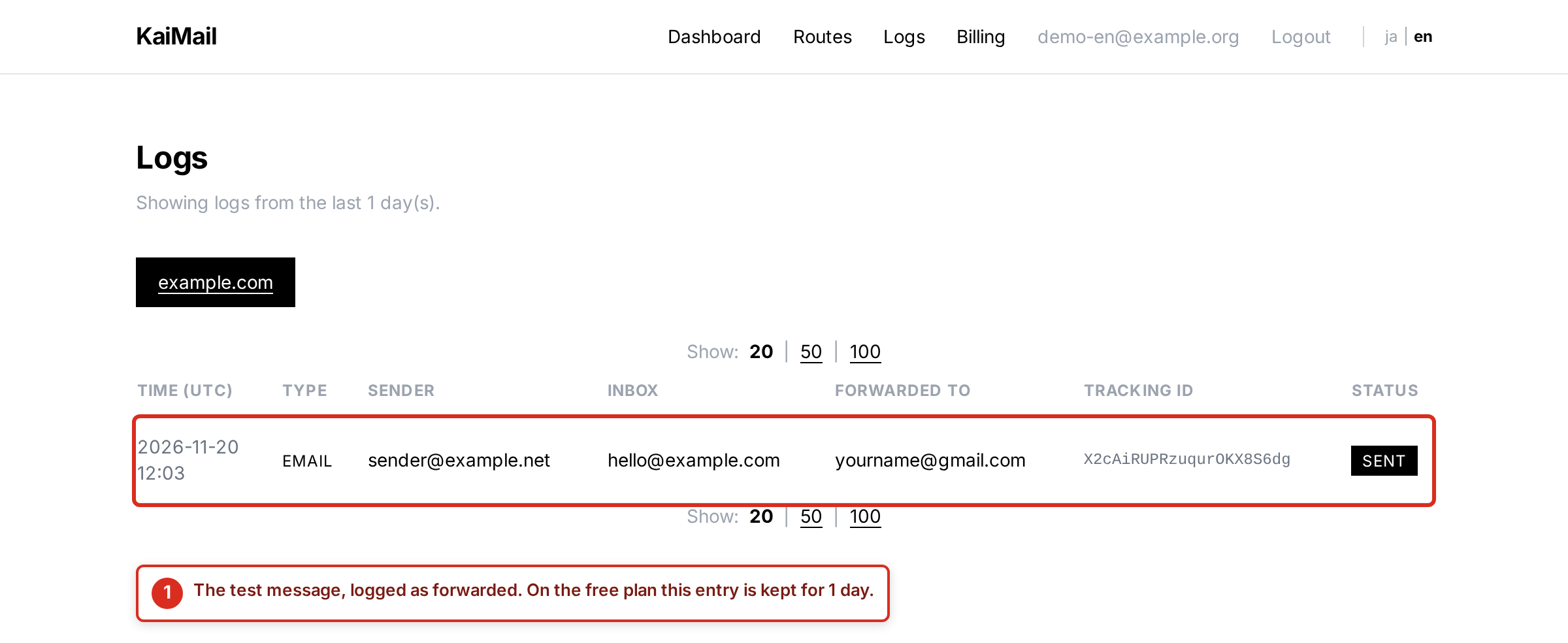
This Logs page from our test environment lists a forwarded message with the status Sent.
Replying From Your Custom Address
Forwarding handles incoming mail. When you hit reply, Gmail answers from your Gmail address unless you tell it otherwise. The feature for this is called "Send mail as", and it needs an SMTP server that is willing to send mail for your address.
KaiMail's SMTP sending is part of the paid plans, starting with Plus. With it, replies leave through KaiMail and carry a DKIM signature for your own domain. The setup guide walks through the Gmail screens one by one.
Set up Gmail to send as your custom domain address
When Free Forwarding Is No Longer Enough
The free plan is built for one address with light traffic. You have outgrown it when any of these becomes true. You need more than one address. People send you attachments over 1 MB. You receive more than 300 emails a month. You want to send from the address and not only receive. Or you want incoming mail delivered to your application as a webhook.
None of these is a failure of free email forwarding. They are signs that the address has turned into something your work depends on.
See what each KaiMail plan includes
Frequently Asked Questions
Is Free Email Forwarding Safe for Business Mail?
For a low-volume contact address, yes. Messages pass through the forwarding service and are not kept there, and with ARC and DKIM signing they arrive with their authentication intact. The limits are the real risk. On our free plan a message over 1 MB is refused, and once you pass 300 emails in a month, further mail is not accepted until the count resets or you upgrade. If a missed message would cost you money, pick a plan whose limits you will not reach.
Will Changing MX Records Break My Existing Email?
It can, so read this before you touch DNS. Changing MX records moves all mail for the domain, not only one address. If the domain already uses Google Workspace or Microsoft 365, those mailboxes stop receiving mail the moment the change takes effect. Forwarding by MX record suits a domain that has no mail service yet, or one you intend to move completely. Your website, and your DNS records other than MX, are not affected.
How Long Does It Take for Forwarding to Start?
KaiMail is ready the moment you save the address. The wait is DNS. Sending servers keep using the old MX answer until its TTL runs out, so the change usually takes effect within 15 to 30 minutes and can take up to 48 hours in the worst case. The Check MX button tells you when KaiMail can see the new record.