 Iqbal Abdullah
Your KaiMail Mailing List Now Has a Sign-Up Page
KaiMail mailing lists can now have a public subscribe page. Tick one checkbox, share the URL, and people add themselves through a double opt-in confirmation.
When we shipped mailing lists in June, I wrote that you could run a list on your own domain, with proper DKIM signing, without paying a separate service. All of that was true.
What I did not write, because it was slightly embarrassing, was how a person was supposed to join one of these lists.
The answer was that you typed their address into the dashboard yourself.
For a three-person sales@ alias, that is perfectly fine. You add three people once and never think about it again. For a newsletter, it is hopeless. We run one ourselves at Kafkai, and every time somebody asked me where to sign up, the honest answer was "reply to this email and I will add you." I have been on the receiving end of that sentence before. It is a terrible way to collect subscribers, and most people simply do not bother.
That gap is now closed. Mailing lists can have a public subscribe page, and people add themselves.
One Checkbox
Nothing new to learn. It is the same Add Mailbox form you already use, with one extra tick.
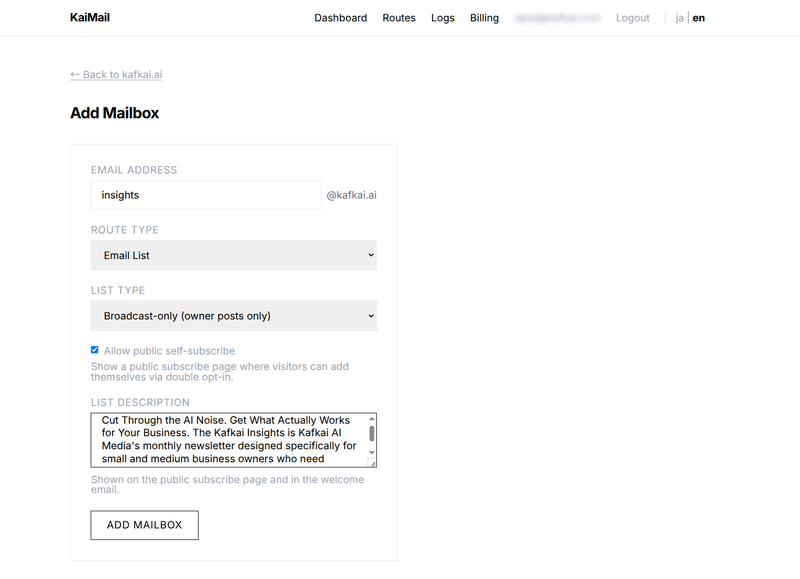
Choose Email List as the route type, pick your list type, then tick Allow public self-subscribe. That publishes a subscribe page for the list.
The other field that matters here is List description. It is not an internal note. It appears on the subscribe page and again in the welcome email, so write it for a stranger who is deciding whether to hand over their email address. Say what the list is, and say how often it goes out. Ours does both in three sentences.
The Page Your Subscribers See
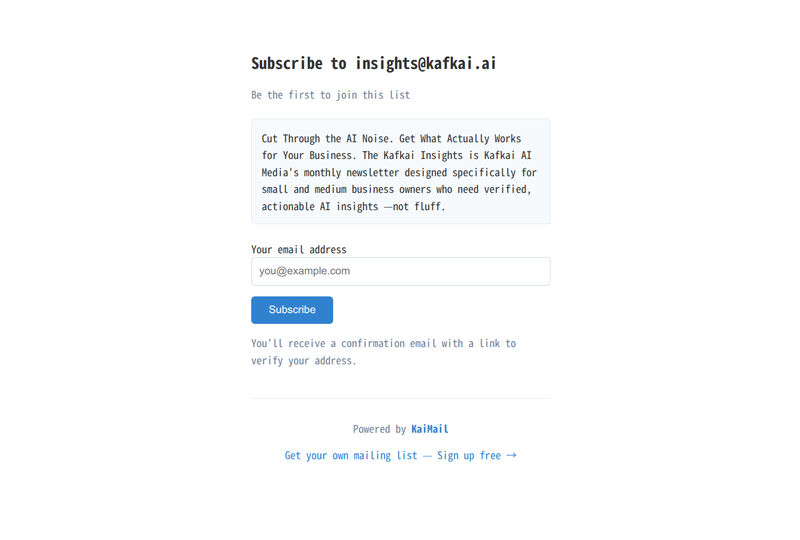
That is the entire page. The list address as the heading, your description, one field, one button.
There is no account to create, nothing to install on your site, no script tag to paste anywhere. You get a URL and you share it. In a talk, in an email footer, on a slide as a QR code (I do this at almost every meetup I speak at).
The line under the heading is a subscriber count. On an empty list it reads "Be the first to join this list", and after that it tells the visitor how many people are already on it. It is small, but it is honest social proof, and it is the number people actually want to know before they subscribe.
At the bottom of the page there is a "Powered by KaiMail" line with a link to sign up. Yes, that is a growth loop and I am not going to pretend otherwise. It also does something useful for your subscriber. A stranger is about to hand over their email address to a page on a domain they have never seen, and that line tells them who is handling it.
Why Confirming Takes Two Clicks
The flow is standard double opt-in, with one deliberate difference at the end.
- The visitor enters an address and presses Subscribe.
- They get a "Check your inbox" page telling them what to expect.
- We send a confirmation email from
[email protected], DKIM-signed bykaimail.net, containing the list description and a confirmation link that expires in 48 hours. - The link opens a confirmation page showing which address is about to be subscribed to which list.
- They press Confirm subscription.
- We send the welcome email, which carries your description and an unsubscribe link.
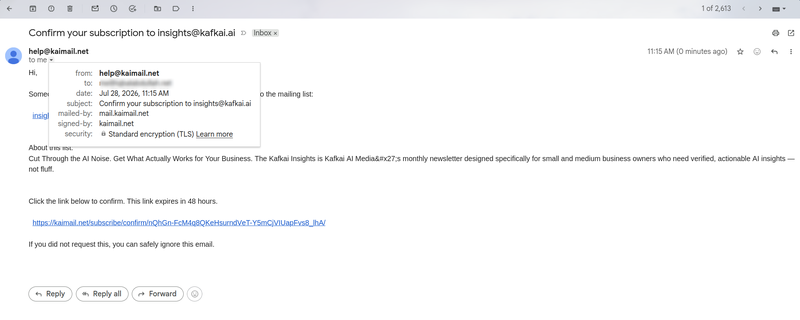
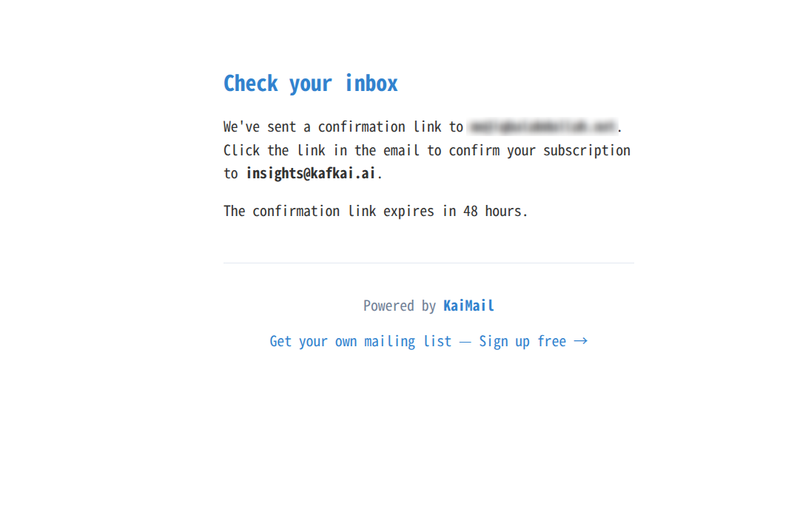
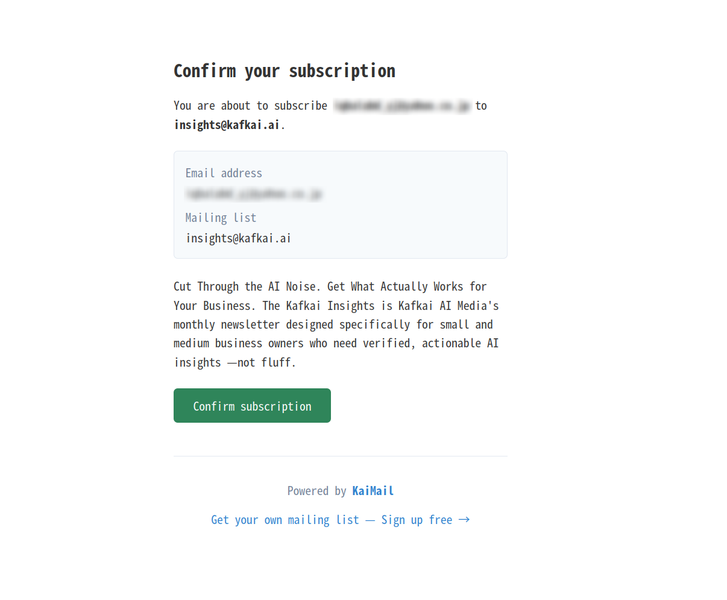
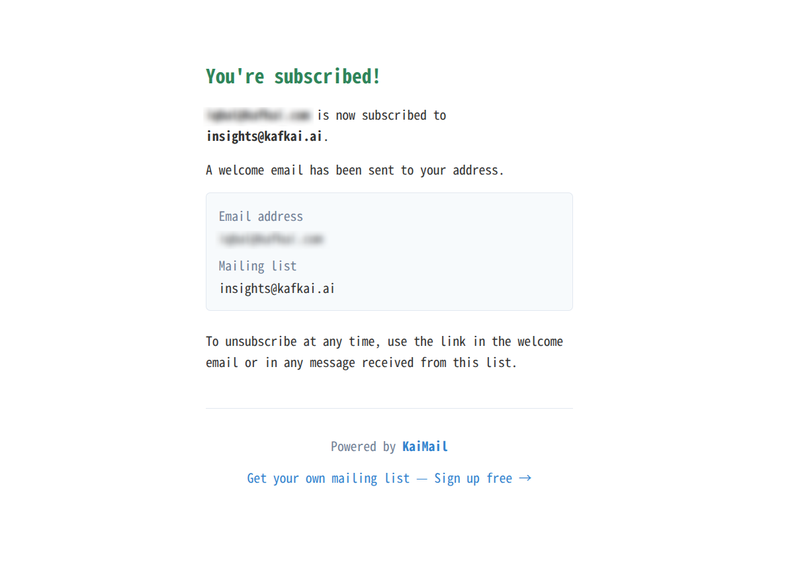
That last page is not just a receipt. It repeats which address went onto which list, and it tells the subscriber how to get off the list again before they have received a single message. Somebody who knows where the exit is does not need to reach for the spam button to find it.
Step 5 is the one people ask about. Why does the link not just confirm the subscription by itself, the way most services do it?
Because links in email get clicked by machines. Corporate mail security products (Microsoft Defender for Office 365 Safe Links, Proofpoint, Barracuda and friends) fetch every URL in an incoming message to check whether it is malicious. Plenty of them do it at delivery time, before a human has even opened the message. If confirmation happened on a plain page load, the scanner confirms the subscription on the subscriber's behalf, and you end up with a "confirmed" address that no human ever agreed to. That is precisely the thing double opt-in exists to prevent.
Making the last step a button press means an automated fetcher landing on that page changes nothing. It sees a page. It does not press buttons.
The 48-hour expiry is the other half of the same idea. A confirmation token that lives forever is a token that gets forwarded, archived, and clicked eight months later by somebody who has forgotten what it was.
And the plain old reason for double opt-in still applies. Anyone can type anyone else's address into a form. Confirmation is what proves the person holding the mailbox actually wants your email. It is also the record you will want on the day someone marks your newsletter as spam, and it is a large part of why your messages keep landing in inboxes instead of spam folders.
What This Replaces
A newsletter with a few hundred subscribers does not need Mailchimp, and it certainly does not need per-subscriber pricing that grows every month while the work stays the same. What it needs is an address people can join and a sender that authenticates properly.
You now have both, on your own domain:
- Subscribers see
[email protected], not a noreply address at a service you rent. - Messages are DKIM-signed with your domain key and DMARC-aligned for list traffic, which is the part most self-hosted list setups get wrong.
- The list of people who chose to hear from you lives on the same domain you already control, next to the rest of your custom domain email.
You send to the list the way you already send anything else, over authenticated SMTP on port 587 or through the HTTP sending API if that suits your setup better.
You Can Take It With You
The part that matters most is the part you only appreciate later.
Because the list lives at an address on your domain, [email protected] belongs to you, not to us. Suppose KaiMail stops being the right fit in two years. Suppose we raise our prices and you decide you have had enough, or your list grows to the point where running your own Mailman or listmonk box actually makes sense. You export your subscribers, point your MX records somewhere else, and keep the same list address. Nothing breaks on your side. Nothing changes on your subscribers' side.
Now compare that with a hosted newsletter platform. The list lives at their address, on their subdomain, behind their sign-up page. Leaving means telling a few hundred people that the newsletter now comes from somewhere else, and hoping they update the filter they set up two years ago. A good fraction of them will never see that message. That is the exit fee nobody puts on the pricing page, and it is the reason people stay on services they stopped liking a long time ago.
I am not writing this because I expect you to leave. I am writing it because a service that is easy to leave has to keep being worth staying with, and that is the side of the deal I would rather be on.
Setting It Up
- Log in to the dashboard and open one of your custom domains.
- Add a mailbox and choose Email List as the route type.
- Pick the list type. Broadcast is what you want for a newsletter.
- Tick Allow public self-subscribe and write the list description.
- Save, then open the list and share its subscribe page URL.
Subscribe to your own list first. Go through the confirmation email yourself and read what your subscribers are going to read.
Availability
Public subscribe pages are part of mailing lists and cost nothing extra. Depending on the list type, you might have to subscribe to a paid plan and those rules have not changed: public forwarding lists work on any plan, while broadcast and discussion lists need Plus, Pro or Business. The details are on the pricing page.
What Is Not In This Release
Three things people have already asked for and which are not there yet.
There is no embeddable form. You share a URL, you do not paste a snippet into your own site. There is no branding on the subscribe page beyond your list address and your description, so it looks like our page rather than yours. And the description is plain text, not HTML.
I would rather ship the flow that works and add these than hold the whole thing back for a form builder. If one of them is the difference between using this and not using it, say so and it moves up the list.
Meanwhile: create a list, tick the box, and put the URL somewhere people can find it.